Table of Contents
ToggleIf you’re a homeowner curious about upgrading to a smart lock, the Apple HomeKit ecosystem offers a seamless way to control your front door from your iPhone, iPad, or Apple Watch. A HomeKit smart lock replaces your existing deadbolt with an intelligent device that works within Apple’s privacy-focused home automation framework. Unlike generic smart locks, HomeKit-compatible models prioritize end-to-end encryption and local control, meaning your access logs and unlock commands stay on your device, not on some company’s cloud server. This guide walks through what HomeKit smart locks are, how they function, which models are worth buying in 2026, and what you need to know before installing one.
Key Takeaways
- A HomeKit smart lock offers keyless access and remote control from your iPhone, iPad, or Apple Watch while prioritizing privacy through end-to-end encryption and local control.
- Top HomeKit-compatible models for 2026 include Schlage Encode Plus for overall value, Aqara Smart Lock U100 for budget-conscious buyers, and Level Lock+ for discreet door aesthetics.
- Installation of a HomeKit smart lock typically takes 30 minutes and requires a HomeKit hub (Apple TV 4K, HomePod mini, or HomePod) on the same iCloud account for remote access.
- Guest access management, activity logging, and automation features allow you to grant temporary codes to visitors, monitor unlock history, and trigger scenes like automatic unlock when you arrive home.
- Strong iCloud password security, limited guest access, firmware updates, and physical security measures work together to protect your home beyond just the smart lock technology.
- Thread-enabled HomeKit smart locks provide faster and more reliable control compared to WiFi-only options, making them the recommended choice when your hub supports this protocol.
What Is a HomeKit Smart Lock and How Does It Work?
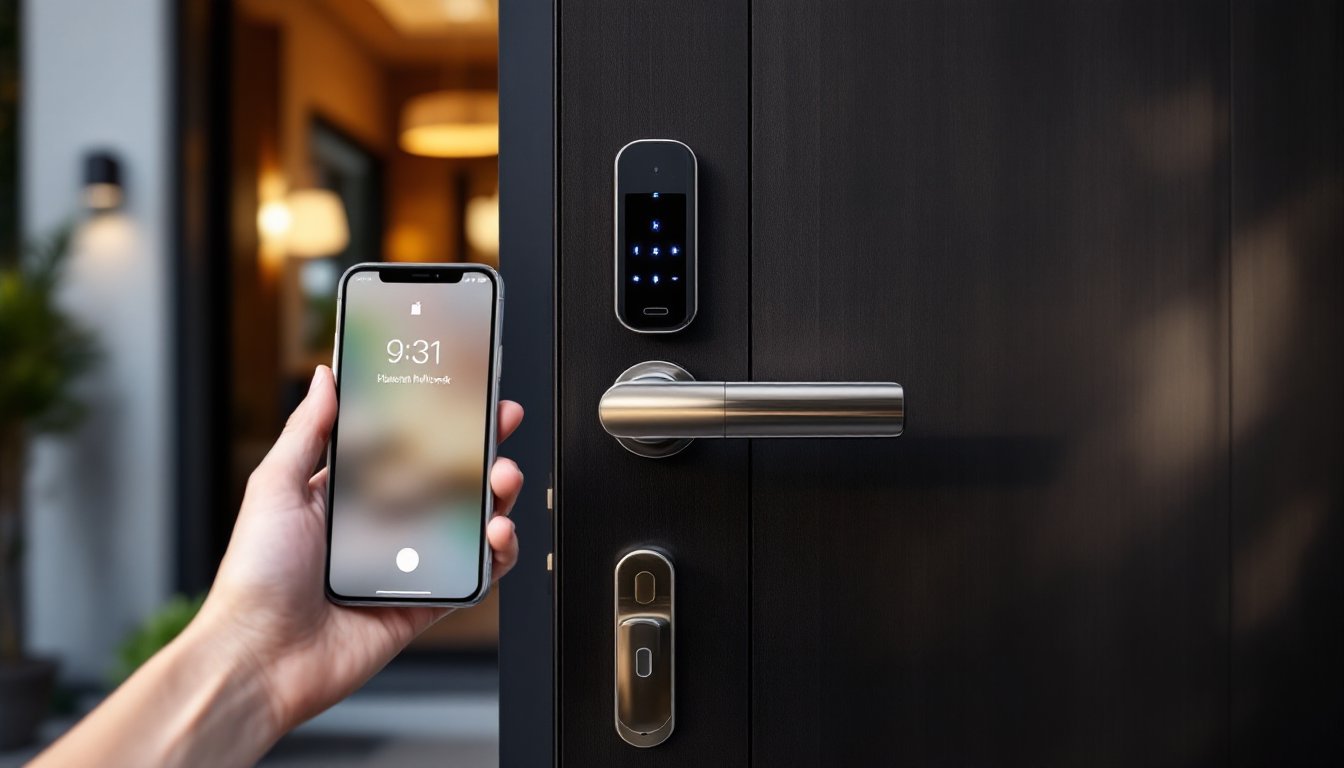
A HomeKit smart lock is a motorized deadbolt that communicates with your home via HomeKit, Apple’s smart home platform. Instead of turning a key, you unlock your door using your iPhone, ask Siri, or set up automatic unlock when you arrive home. The lock connects to HomeKit through a Thread-enabled hub (an Apple TV 4K, HomePod mini, or HomePod) or, in some cases, Bluetooth for nearby control.
The core mechanics are straightforward: the lock contains a motor that retracts and extends the bolt. When you tap the Home app or use a voice command, the request travels securely to your hub, which communicates with the lock’s motor. Most HomeKit smart locks also accept a physical key or a keypad code, so you’re never completely locked out if your phone dies.
HomeKit enforces strict encryption protocols. Your lock’s access logs and unlock commands never leave your device unless you explicitly share them. This is different from many generic smart locks that store data on a company server. If privacy and local control matter to you, that’s the biggest appeal of HomeKit: your unlock history stays private.
One important note: not all smart locks are HomeKit-compatible. The lock must specifically support HomeKit’s protocols. Look for “Works with HomeKit” certification on the packaging. Generic WiFi smart locks from brands focused on the broader market, like some models from Wyze, won’t integrate into HomeKit unless the manufacturer adds support.
Top HomeKit-Compatible Smart Lock Options for 2026
Several brands manufacture HomeKit-compatible smart locks, each with different price points and features. The market has matured, so options now cover budget-conscious buyers and those wanting premium features.
Level Lock+ is a popular choice. It installs inside your existing deadbolt, so the outside of your door looks unchanged. It’s one of the more discreet options, though installation is trickier than a traditional smart lock because it requires removing your current lock cylinder. The lock supports HomeKit and includes keypad and key options.
Schlage Encode Plus ($300–$350) offers a more traditional smart lock appearance. It replaces your entire deadbolt assembly and works with HomeKit. The lock has a built-in keypad and supports Thread for faster, more reliable communication. It’s a solid middle-ground option for most homeowners.
Aqara Smart Lock U100 is a newer entry that’s Thread-enabled and HomeKit-certified. Aqara focuses on competitive pricing without cutting corners on HomeKit integration. If you already use Aqara devices in your home, this lock plays nicely with other Aqara accessories.
Nuki Smart Lock Pro ($200–$250) also works with HomeKit and installs on top of your existing lock mechanism, meaning your door’s outside appearance barely changes. It’s Europe-centric but available in the US through select retailers.
Prices vary by region and retailer: always confirm current availability and HomeKit certification before purchasing. Reviews from sources like best smart locks in 2026 and home automation guides provide updated comparisons.
Best Overall and Budget-Friendly Picks
For overall value, the Schlage Encode Plus strikes a balance between features, reliability, and HomeKit integration. It’s from an established lock manufacturer, Thread support ensures responsive control, and installation follows a standard deadbolt replacement pattern.
For budget-conscious buyers, the Aqara Smart Lock U100 delivers solid HomeKit functionality at a lower entry price. You’re not sacrificing HomeKit security or privacy: you’re just getting a simpler interface and fewer premium features.
If aesthetics matter more than price, the Level Lock+ keeps your door’s appearance unchanged. The trade-off is installation complexity and a slightly higher learning curve for setup.
Consider your door’s existing lock style, your budget, and whether you want a Thread-enabled device (recommended for reliability) when deciding.
Key Benefits of Upgrading to a HomeKit Smart Lock
Upgrading to a HomeKit smart lock brings practical advantages beyond the “cool factor.”
Keyless Access: You stop carrying a house key. Unlock from your phone, watch, or iPad wherever you are. No more digging through your bag at the door.
Guest Access: Use the Home app to create temporary codes for guests, contractors, or housecleaners. Set expiration times so the code works only for a set period. You can revoke access instantly without changing your locks.
Activity Logs: Every unlock is logged with a timestamp and who (or what method) unlocked the door. If your roommate says they didn’t go out, the activity log proves otherwise.
Automation and Scenes: Set your lock to automatically unlock when you arrive home or lock when you leave. Chain it into HomeKit scenes, for example, “Goodnight” mode could lock your front door, close garage doors, and arm security sensors simultaneously.
Privacy: Because HomeKit uses local control and end-to-end encryption, your unlock history and authentication data don’t flow to external servers. Contrast this with many smart locks that store unlock logs in the cloud.
Accessibility: People with mobility issues or arthritis often find smart locks transformative. No wrestling with keys or turning a deadbolt: a tap on your phone does it.
These features aren’t gimmicks, homeowners report that guest management and automation convenience alone justify the investment. The privacy angle resonates strongly with people wary of smart home data collection.
Installation and Setup: What Homeowners Need to Know
Installation difficulty depends on the lock model. Most HomeKit smart locks fit standard US deadbolts (1 3/8″ to 1 3/4″ door thickness). Before buying, measure your door and confirm compatibility.
Tools and materials you’ll need:
• A screwdriver (usually Phillips, sometimes torx)
• Your existing deadbolt’s removal key (usually comes with the house)
• New lock’s installation hardware (included in the box)
• About 30 minutes for a straightforward replacement
Basic installation steps (typical deadbolt replacement):
- Remove your current deadbolt by unscrewing the interior assembly.
- Slide the new lock’s cylinder and exterior plate into the door hole.
- Attach the interior assembly and tighten screws.
- Test the lock by turning the thumbturn inside and checking the bolt retracts smoothly.
- Add the lock to HomeKit via the Home app using the 8-digit HomeKit code (usually on the lock’s back or in the manual).
If your door is non-standard, narrow, thick, or with a decorative escutcheon, measure twice. Some locks don’t fit doors thinner than 1 3/8″ or thicker than 1 3/4″. If you’re unsure, a locksmith charges $50–$100 to confirm compatibility and sometimes install the lock for you.
A real note: If your lock involves removing a mortise lock (older doors) or a rim lock, stop. Call a locksmith. You’ll spend more on mistakes than the professional charges.
Compatibility Requirements and Prerequisites
HomeKit smart locks require three things:
- An Apple device running HomeKit: iPhone, iPad, or Apple TV. Android phones cannot control HomeKit locks.
- A HomeKit hub: An Apple TV 4K (or earlier models), HomePod mini, or newer HomePod. This hub must be on the same WiFi network and logged in to the same iCloud account. Without a hub, you can control your lock only when you’re physically near it via Bluetooth.
- Thread support (optional but recommended): Most newer HomeKit smart locks support Thread, a low-power mesh network protocol. Thread provides faster, more reliable control than WiFi. To use Thread, your hub must be Thread-enabled (Apple TV 4K with USB-C or HomePod mini). If you don’t have a Thread hub, the lock still works via Bluetooth or WiFi, just with slightly more latency.
Before buying a lock, confirm you have a HomeKit hub. If you don’t, a HomePod mini (~$99) is the most affordable hub option and also serves as a Bluetooth speaker.
Check that all your devices, hub, lock, and phone, are signed in to the same iCloud account. If your partner also needs access, invite them to your home in the Home app before adding the lock.
Security, Privacy, and Best Practices
HomeKit’s architecture is built around security. Locks use end-to-end encryption, so even Apple doesn’t see your unlock data. But you still need to practice smart habits.
Strong iCloud password: Your HomeKit access hinges on your Apple ID. Use a unique, strong password and enable two-factor authentication. If someone compromises your Apple ID, they can remotely unlock your door from anywhere.
Limit guest access: Don’t share HomeKit access with every household member. Give temporary guest codes through the Home app instead. Codes can be set to expire or limited to specific times (useful for dog walkers or contractors).
Keep your hub updated: HomeKit hubs (Apple TV, HomePod) occasionally receive firmware updates. Enable automatic updates in Settings > AirPlay and HomeKit to ensure your hub patches security issues quickly.
Use a strong HomeKit code: When setting up the lock, HomeKit generates or lets you customize a code. Avoid obvious numbers like your birth date. The code is printed on the lock’s back or in the app: store it somewhere safe offline.
Physical security still matters: A smart lock is secure, but a criminal can still break a window or force a door frame. Locks complement security: they don’t replace awareness. Landscape around entry points to eliminate hiding spots. Use outdoor cameras to deter and document incidents.
Test remote access: After setup, walk outside and confirm you can unlock your door via the Home app. This proves the hub is working and that remote access functions. If it doesn’t, troubleshoot before relying on the feature.
HomeKit smart locks from home tech comparisons and other reputable reviewers consistently rank high for security. That said, no digital lock is 100% bulletproof, the combination of local control, encryption, and physical security practices is what keeps your home safe.